

Welcome to Blackboard Faculty Support!
If you have any questions, please contact the Academic Instructional Technology Center at asaitc@adams.edu or 719-587-7371.
🔍How to search this page
- 💻CTRL+F (PC) CMND+F (Mac)
- 📱three dots on browser’s upper right → Find in page
Looking for something else?
Submit a question here!
Blackboard Ultra
FAQs
Can’t find what you’re looking for?
Submit a question here!
New Gradebook: Top Questions
The Gradebook just got a makeover! Don’t worry, everything is still there. Here are some of the most common questions we’ve received about the new look:
Hide students in the Gradebook who are no longer in my course?
How do I hide students in the Gradebook who are no longer in my course?
Yes! Go to the Gradebook then click the gear icon on the right side of the navigation bar to open the Gradebook Settings panel. Scroll down to Students Visibility and toggle to activate the setting.
Hide students in my downloaded Gradebook?
How do I hide students in my downloaded Gradebook?
→First, set up your working Gradebook file in your spreadsheet program:
- In Ultra, download the Full Gradebook. Under Record Details choose Select All Items. Leave all other options on their default.
- Open the downloaded Gradebook in your spreadsheet program. This will serve as your working Gradebook file.
- Hide the rows of students who no longer have access to the course. In Excel and Google Sheets, right click on a row and select Hide or Hide row. Here’s how to do this in Numbers.
→When you want to update the Gradebook in your spreadsheet program:
- Download the desired content from the Gradebook.
- Open the downloaded file.
- Copy and paste the appropriate columns into your working Gradebook file. Your working Gradebook file will automatically place data for students who no longer have access to the course into their hidden rows, so you can navigate your working Gradebook file as though it only contained students with access to the course.
Students can't see their grades or my feedback?
Why can’t my students see their grades or my feedback?
First, check that the grade is posted.
You can also make sure the assignment itself is visible to students by going to the Content page and looking at the visibility dropdown under the item’s name.
Grades aren't posting automatically?
Why aren’t my grades posting automatically?
→Check the setting: open the assessment from the Content page, then click its gear icon to access the settings panel. Scroll down to Grading & Submissions and select the Post assessment grades automatically checkbox, then click Save.
→If the setting is grayed out or you don’t see it, then the assessment may be incompatible with automatic grade posting. Common examples include assignments with rubrics, discussions and journals, as well as columns created in the gradebook.
Add an attempt or exclude an attempt?
What happened to Blackboard Collaborate? What is Class for Zoom?
For virtual meetings in Blackboard, we’ve transitioned from Blackboard Collaborate to Class for Zoom! You can access it from the Details & Actions menu in your course by clicking Launch Class. Here are two quick-start resources:
- Class for Zoom – Quick Start (Video) (Doc)
- Class for Zoom – Instructor Guide (Doc)
OCR a scanned PDF?
How do I OCR a scanned PDF?
You can use the Ally File Transformer within Blackboard to OCR scanned pdfs:
- Select Assist in the base navigation menu
- Scroll down to Ally File Transformer
- Upload your file then select OCRed PDF
Also see:
Time zone in Blackboard Ultra?
How do I set the time zone in Blackboard Ultra?
There is no time zone setting in Ultra because Ultra automatically displays the user’s time zone. Here are some examples in the Ultra Time Zone guide. You can also use this time zone calculator for MST/MDT and your local time.
Can't edit a due date because of a release condition?
Can’t edit a due date because of a release condition?
Use Batch Edit! This tool lets you update release conditions and due dates at the same time. You can also modify dates on multiple items at once!
Still need help?
Submit a question here!
Training, Session Recordings, Sandboxes
Trainings & Session Recordings
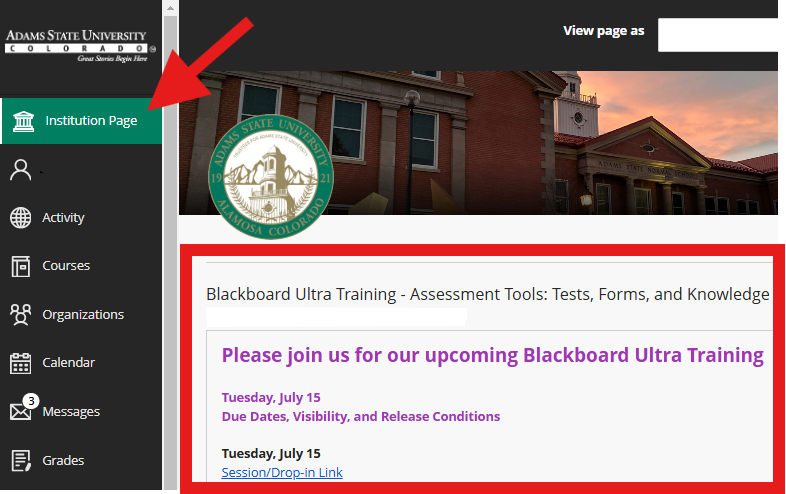
Find information on upcoming trainings by logging into Blackboard then scrolling through the Institution Page. You can also find recordings on this page under Blackboard Ultra Migration Session Recordings. If you’d like more help, contact our trainer, Dr. Chelsea Oden.
Sandboxes
Educational and interactive sandbox shells are available to instructors who want hands-on practice and space to experiment with features in Ultra. Please contact our trainer to learn about specific availability!
Get Started in Ultra
Create and Organize Content
General
- Upload a Syllabus (Video) (Doc)
- Review and Reupload a Syllabus (Video)
- Add the “Additional Course Expectations and Information” document
- Create a Learning Module (Video) (Doc)
- Clip: Add Content to a Learning Module
- Clip: Add a Web Link or Course Link
- Generate Learning Modules (Google Slides)
- Date-Release Learning Modules (Video) (Doc)
- Create an Ultra Document (Video) (Doc)
- Use the Content Editor (Video)
- Move Content – Drag and Drop (Video does not contain audio)
- Move Content – Keyboard Shortcuts / Keyboard Controls
- Release Content by Date
- Edit Due Dates and Release Conditions at the Same Time (Doc)
- Batch Edit – Edit Visibility and Dates on Multiple Items at the Same Time (Doc)
- Release Content for a Student or Group
- Progress Tracking
Adding Media
Other
Accessibility & Ally
General
- Accommodations and Exceptions (Doc)
- Accessibility Chart (Doc)
- Improve Content Accessibility in Blackboard
- Ally (Blackboard’s Built-in Accessibility Checker):
- WCAG 2.1 AA Requirements Cheat Sheet
Text
- Accessible Lists (Video) (Doc)
- Headings (Video) (Doc)
- Handwritten Notes
- Insufficient Contrast: Find and Replace Text Color in Microsoft Word
PDFs
- OCR Scanned PDFs (Video) (Doc)
- Untagged PDFs
- PDFs Missing Headings
Images
- Alt Text: Images without Description (Video) (Doc)
- Image Captions in Word Processors
- QR Codes
Videos
Discipline-Specific
- Art: Contextual Image Description
- Computer Science: Adding Code Snippets
- Music: Scanned Music Notation
- STEM: Handwritten Notes
- STEM: Diagrams and Graphs
- STEM: Equations in Ultra – LaTeX
- STEM: Math Editor in Ultra
Assessments
- How to have Students Submit Videos:
- Accommodations and Exceptions (Doc)
- Batch Edit – edit visibility and dates on multiple items at the same time (Doc)
- Create an Assignment (Video) (Written Instructions)
- Generate Assignment Prompts (Google Slides)
- Create a Discussion
- Generate Discussion Prompts (Google Slides)
- Generate Journal Prompts (Google Slides)
- Create a Test (Video)
- Create a Rubric (Video)
- Generate Rubrics (Google Slides)
- Set Up AI Conversations (Google Slides)
- Set Up and Assign Groups
- Achievements (Badges)
- Progress Tracking
Gradebook and Grading
The Gradebook just got a makeover! Don’t worry, everything is still there. Here is a resource on the top questions we’ve received.
- Set Up the Overall Grade
- Set Up a Weighted Grade
- Create and Organize Gradebook Items
- Check the Overall Grade – Points (Video)
- Check the Overall Grade – Weighted (Video)
- ❗Post Grades (So Students Can See Them)
- Grade Assignments, Tests, Forms, and AI Conversations (Video) (Doc)
- Grade Discussions and Journals (Video) (Doc)
- Leave Video Feedback (Video)
- Enter Grades Manually / Manual Grade Entry (Doc + Gif)
- Grade Manual Grade Items
- Override Grades
- Add an Attempt / Exclude an Attempt
- Accommodations and Exceptions (Doc)
- Automations
Communication and Interaction
- Post Announcements (Video)
- Use Messages (Video)
- Class for Zoom – Quick Start (Video) (Doc)
- Class for Zoom – Instructor Guide (Doc)
- Automations
- Navigate Discussions (Video)
- Set Up and Assign Groups
And More…
Checklists & Strategies
Blackboard Original (Sunsetting December 2026)
Have a question about Blackboard Original?
While we have fully moved to Blackboard Ultra, you may have archived courses in Blackboard Original. Those courses become Read Only December 2026.
Please reach out to us in AITC at asaitc@adams.edu or 719-587-7371 if you have any questions!